
Here is the first piece of many tedious tasks that I would like to automate.
Within my role at KPMG, we have a couple tools and software specific to Risks, Controls, and SOX/SOC Testing. The two primary applications are eAudit and Clara. This task used eAudit.
As part of closing procedures, I was instructed to go through eAudit and ensure there were no outstanding comments in work papers (WP) within the larger client file. If I found a comment, I was instructed to make note and compile a list. These comments are review notes from different stakeholders on the firm-side and are usually questions or requests to fix content/verbiage.
We tested 11 parent controls, CO-01 through CO-11 (Computer Operations). Within each parent control, there are 3 to 8 ‘child’ controls (e.g. CO-01.01 through CO-01.08) Within each ‘child’ control, there is a Test of Design (TOD) and a Test of Operating Effectiveness (TOE). Within each TOD and TOE, there is one memo (usually .doc) and one WP (usually .xlsx). If we do some math, there are, on average, 110 documents to scan through for comments:
11 parent controls * (on average) 5 child controls = 55 control modules
55 control modules * 2 TOE & TOD documents = 110 documents to scan through for comments
Initially, I previewed the documents within eAudit but was later informed that I had missed some comments. I was asked to go through each 110 documents to ensure all were addressed and removed. To ensure I wasn’t missing any, I decided it was best to open each document and use the built in Excel / MS Word command to “Show Comments.” This command either told me that “there are” or “there are not” comments in the file.
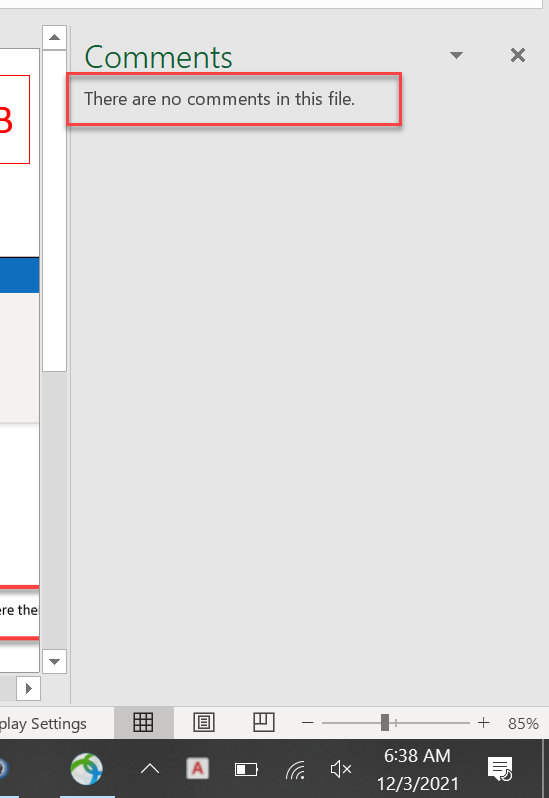
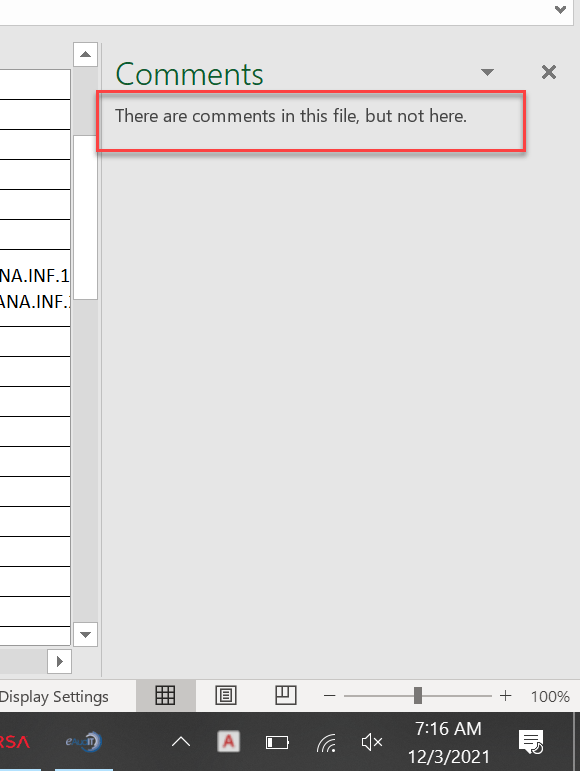
Although necessary, this task was tedious, mundane, and repetitive. How can I automate this?
The Automation
My first concern is that UiPath might not connect to eAudit, being that eAudit is an internal legacy system. Concern aside, the automation might perform as follows.
- 1. Click and open a parent control
- 2. Click and open each TOE and TOD sections
- 3. Click and open each ‘child’ control
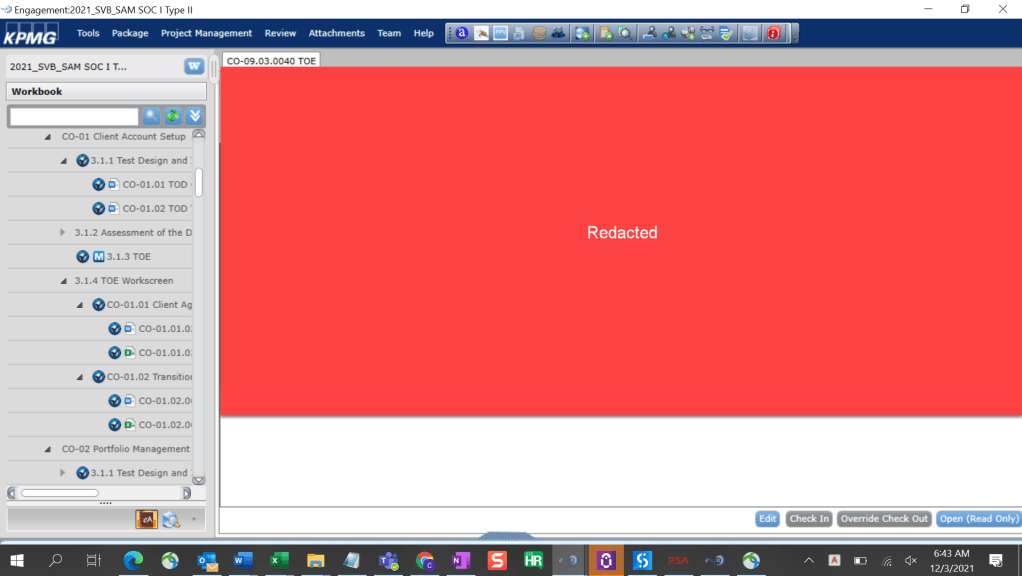
- 4. Click the ‘Open (Read Only)’ button in the bottom right corner of the above screenshot. Note: the process of clicking on the module, having it load, then opening the document takes a bit of time (~ 5-10 seconds).
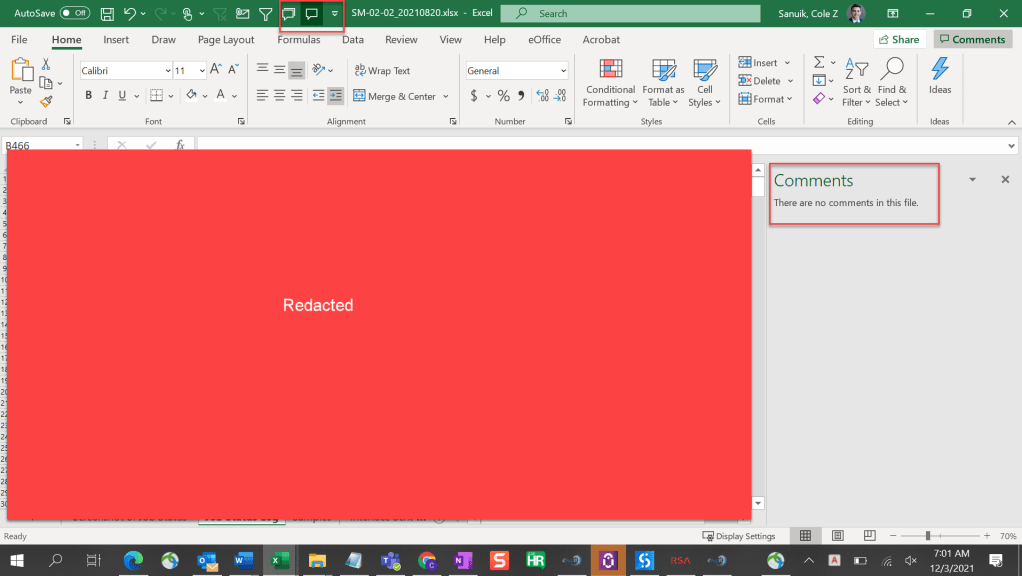
- 5. Once the document has opened, click the shortcut icon on the top of the Excel (pictured below) to determine whether there are comments in the file.
- 6. The following steps can go a number of ways ranging from complex to simple. In theory, we might be able to run a program that finds the comments, notes where they are, and connects to excel to document/make a list of active comments. For simplicity purposes, I’ll be taking the following approach.
- 7. Once the ‘Show Comment’ icon is clicked, the program will take a screenshot, as seen above.
- 8. The screenshot will be saved in a folder.
- 9. After the program is automatically ran for all 110 control modules, I can go to the screenshot folder and cycle through every screenshot and note whether a comment is present in the file or not. I will have the necessary RDE / info to relay which control module has comments in the file.
The beauty of this automation is that the program can be used across the firm. It’s my extrapolation that this task is a closing procedure that needs to be executed for every SOC report engagement (and likely every eAudit/Clara engagement).
I may have spent more time thinking about and documenting this task as it took to complete, but I am thoroughly interested in automation and hope to tie it into all aspects of my work.

 Zen Making Robots